If you get an error about the Ribbon/COM Addin handler, or if the Analytics Edge ribbon bar disappeared or does not appear when you open Excel, the add-in may be disabled, unselected or untrusted by Excel. Note that when Analytics Edge is running a scheduled refresh, the ribbon bar entry does not appear — this is normal.
0. Reboot Your Computer
Sometimes an Excel process gets stuck in the background, and it locks out the add-in. Restarting your computer clears these lockouts.
1. Excel Has DISABLED the Add-in
 Open File – Options – Addins dialog
Select the VERY LAST OPTION: Manage Disabled Items – Go…
If Analytics Edge is listed in the dialog, select it and click the Enable button.

2. Excel Has UNSELECTED the Add-in
 Open the File – Options – Addins dialog
Select Manage Excel Add-ins – Go…
Make sure the Analytics Edge Add-in is checked

3. Excel does not TRUST the Add-in
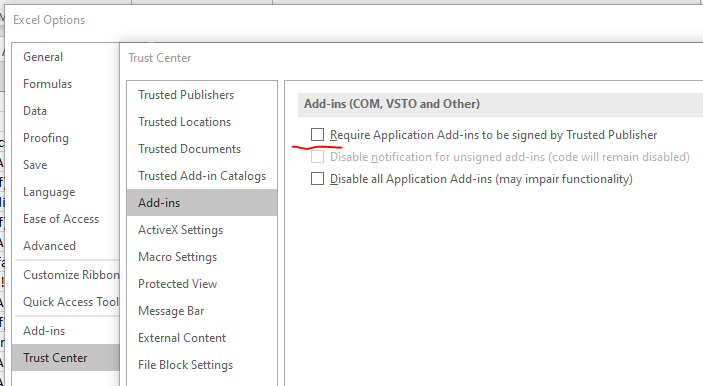
Open Excel File – Options dialog, navigate to Trust Center – Trust Center Settings… button navigate to Add-ins, and UNcheck the entry to Require Application Add-ins to be signed by Trusted Publisher.