*MCP Server for Google Analytics

EXPERIMENTAL
This product is experimental and may change significantly before being released…or dropped.

Please provide feedback to support@analyticsedge.com if you find the product useful.

Installation

On a Windows computer, download/run the installer:
https://www.analyticsedge.com/downloads/AnalyticsEdgeMcpGA.appinstaller

The application setup will run. Start by reviewing and accepting the software license agreement and privacy policy.

All Analytics Edge software is free to use for 30 days. Experimental releases are licensed at no cost for several months. To activate the license, simply login to the Google Analytics account you want to use. A security token associated with your account will be encrypted and stored on your computer for exclusive use by the product.

Account Login/License Activation

When you click the Login button, a browser window will open to allow you to log into your Google Analytics account. You will then be asked to authorize the application, which will be identified as ‘AE Exporter’.

Then you will be asked to confirm the access permissions — CHECK THE BOX to allow access to your Google Analytics data. Note that this is read-only access — the product cannot make any changes to your accounts or properties.

You can then close the browser window and return to the application…

…where you can accept or change the reference name used to identify your account. This reference name will be visible to the AI, so you can change it to protect your personal information into “my account”, “work account”, “agency account” or other non-specific name.

Remember that you will be conversing with an AI and using this reference name in the instructions, so make it easy and natural to work with.

Click the OK button to accept the reference name and save your account.

Setup is now complete. The MCP Server needs to be restarted to properly initialize.

Close the application by closing the window (‘X’ in the upper right corner). The application can be started from the Windows start > Analytics Edge MCP GA.

Note that the login credentials (security token) is encrypted and stored in a database in a ‘AeMcpGA’ sub-folder in your Documents folder. Contact support if you need to move it somewhere else.

Final Step – Configure Your AI Client

When you restart the MCP Server, it will show that it is listening on port 8327 (default).

If you are using the Gemini CLI desktop client, click the link at the bottom to open the settings.json file and add a section for ‘mcpServers’ as described.

If you are using the Claude Desktop client, clikc that link to open the claude_desktop_config.json file and add a section for ‘mcpServers’ as described. Your file may differ from the one shown.

If you use a different AI desktop client, consult the documentation for adding an MCP server — instructions will be similar. Your file may differ from the one shown.

If you already use one or more MCP servers, note that there should be a comma between each server entry in the ‘mcpServers’ section.


MCP GA About

Opening the About wizard will show your some details about the MCP server installation. Share this information with support if you have a problem. The ‘self test’ will open a browser window that you can close — it tests a critical function of the account login process. More

MCP GA Accounts

The Accounts wizard allows you to interactively add, refresh or delete accounts from your installation. More

MCP GA Help

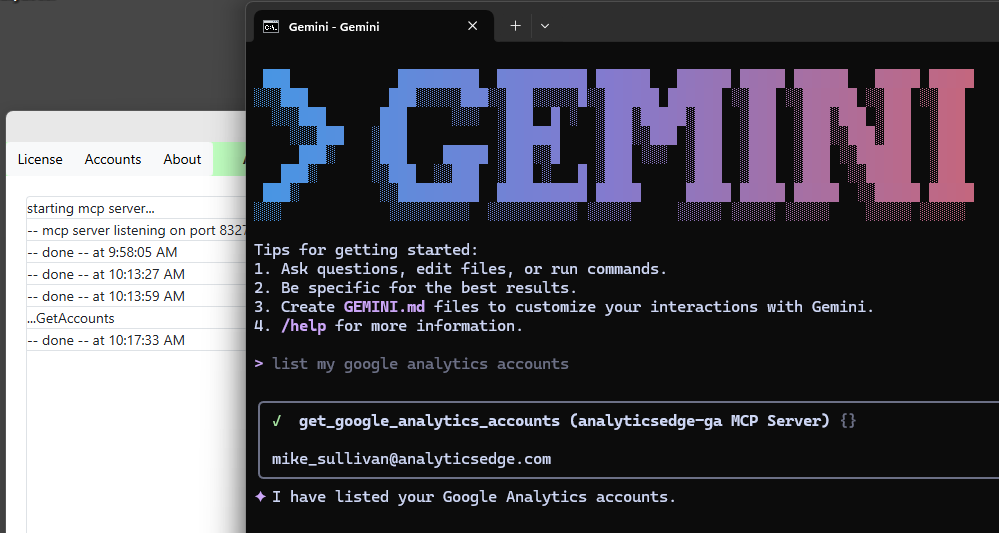
When the application starts, it will confirm that the mcp server is listening. As your AI makes queries, status updates will be logged; for example, asking for your Google Analytics accounts listing will show the ‘GetAccounts’ function was run.

More

MCP GA License

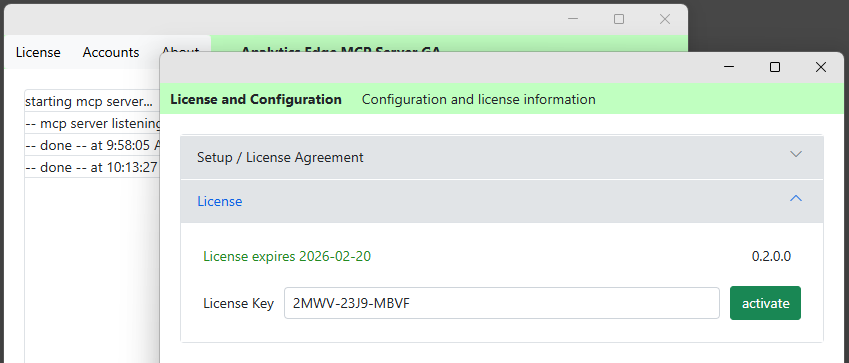
Should you have a problem with your license, the Licnesee wizard shows you the current status. The Experimental release has a trial license that lasts several months.