When the application starts, it will confirm that the mcp server is listening. As your AI makes queries, status updates will be logged; for example, asking for your Google Analytics accounts listing will show the ‘GetAccounts’ function was run.
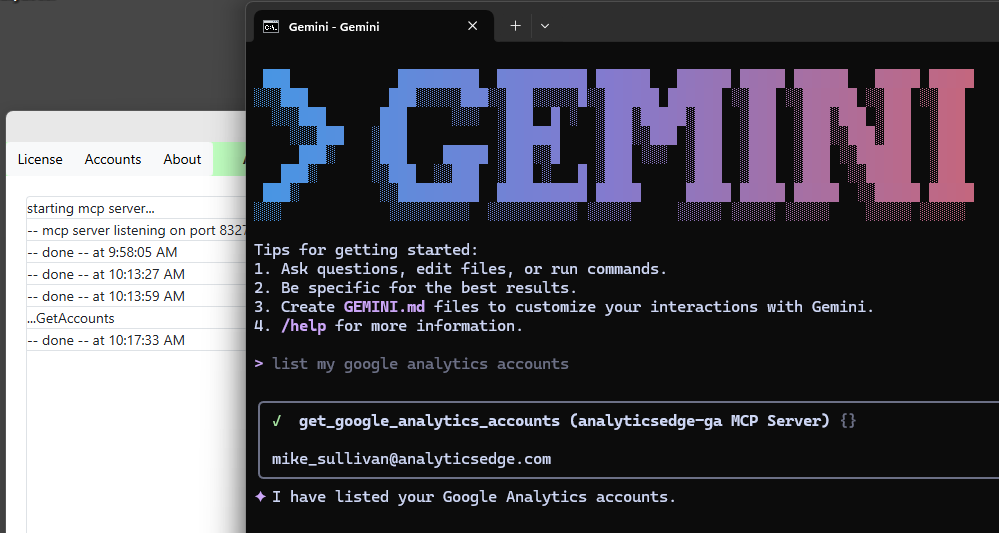
Note that the MCP Server does NOT use API terminology — it uses the same terms you see in the web interface, so active users are ‘Active Users’. Use the account reference name(s) when talking about which account to use. Properties are referenced by their names.
Additional information is logged when making queries. Each ‘tool’ in the MCP server has various parameters, and the status log will show which tool was called and what the AI asked for.
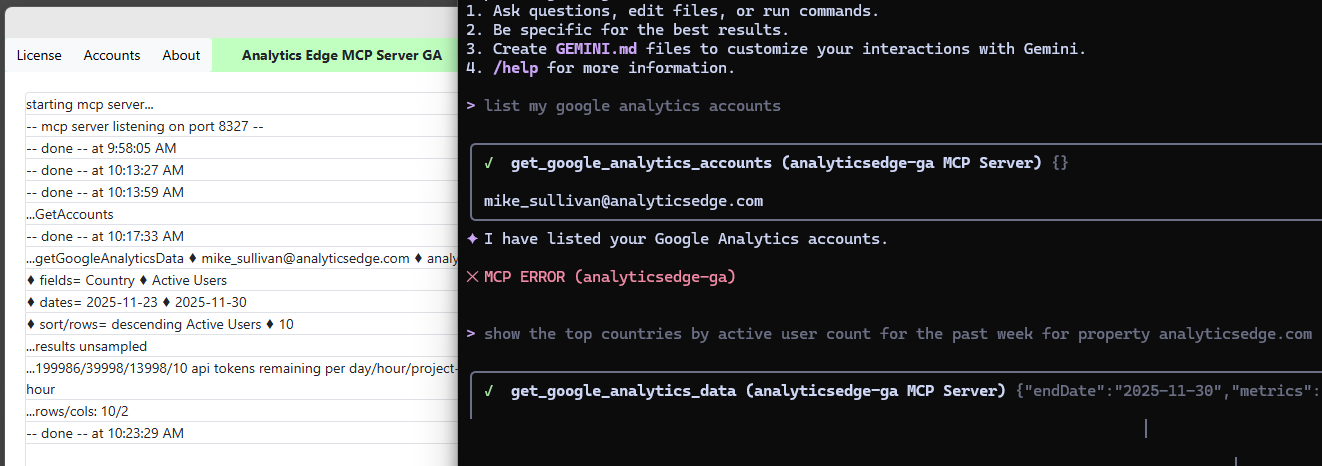
Query logs show if the results were sampled, how many GA API tokens are remaining (yes they have limits), as well as the number of rows and columns in the response.
Debug
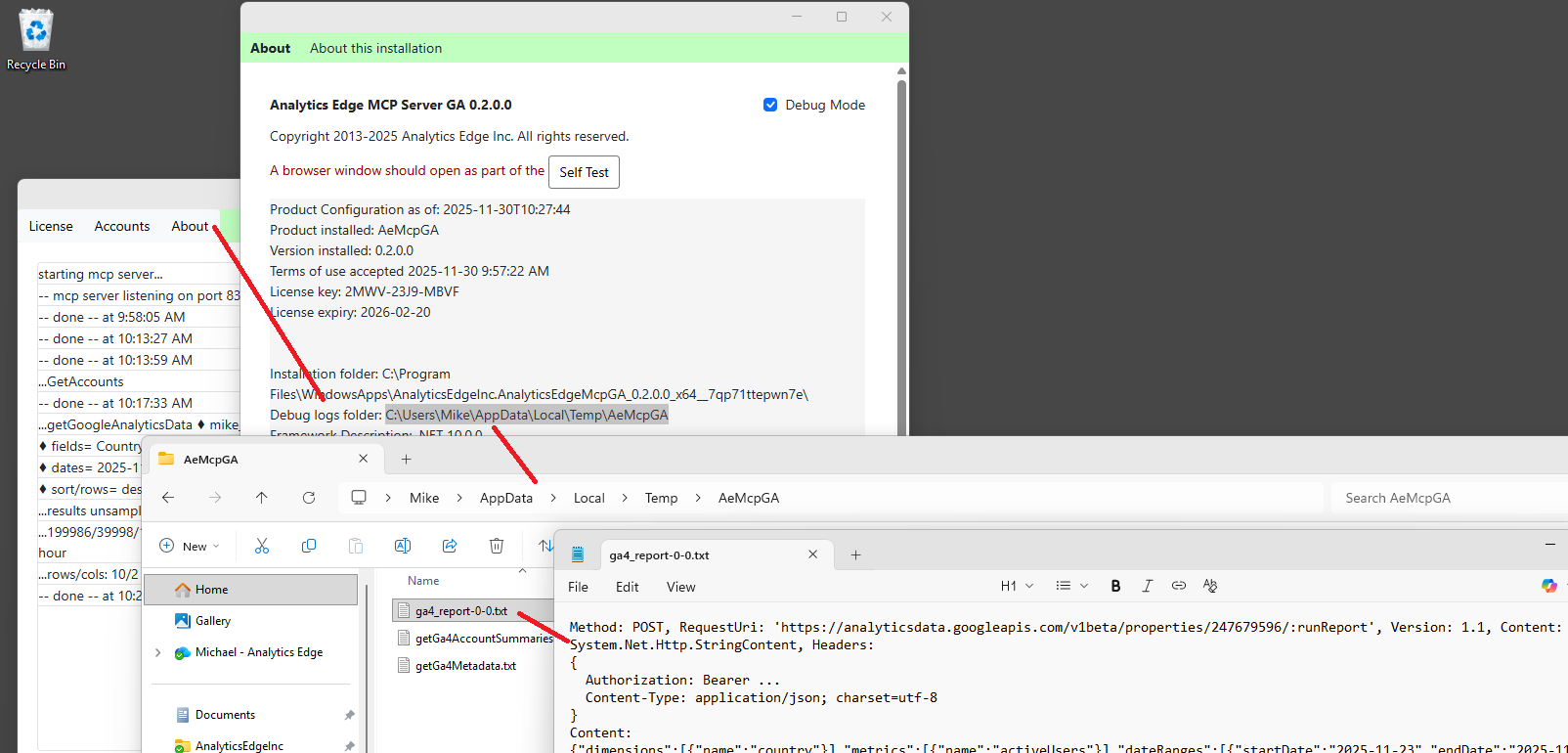
Note that by default, the experimental release has debug mode enabled. Check the Debug logs folder for debug files showing details of recent API calls and responses (the About wizard shows the location). Note that security tokens are excluded from the logs.
THIS IS AN EARLY RELEASE – please provide feedback on how it works for you or any problems you encounter. Remember: there is NO TRACKING, so I have no idea what you are experiencing! support@analyticsedge.com